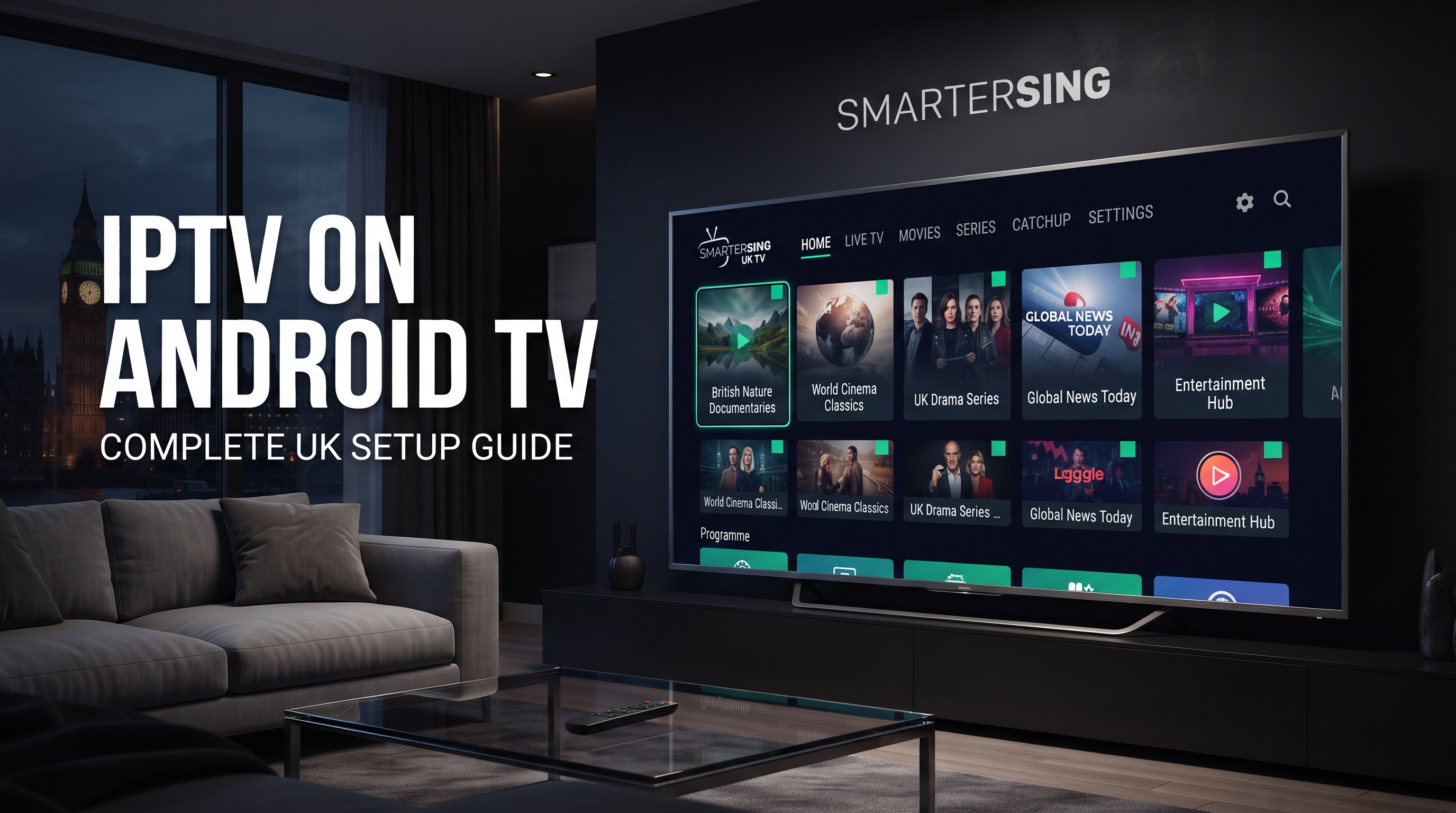
Android TV has become a popular platform for connected television because it combines a Smart TV interface with access to a wide range of compatible applications. For IPTV users, this can make Android TV a flexible option for managing internet-delivered television and video content.
However, setting up IPTV on Android TV requires more than simply installing an application. You need a compatible device, a suitable IPTV player, a stable internet connection and valid service information from an authorised content source.
In this Smartersing guide, we explain the complete process in a practical way, from checking compatibility to configuring your player and solving common playback problems.
Looking for a UK IPTV option?
Explore Smartersing plans and review the available options for compatible Android TV streaming setups.
BEST IPTV UK →What Is IPTV on Android TV?
IPTV means Internet Protocol Television. Rather than receiving video exclusively through traditional broadcast or satellite systems, IPTV uses internet networks to deliver video streams to compatible applications and devices.
Android TV provides an operating environment where compatible streaming applications can be installed and used. An IPTV player normally acts as the interface between the device and the authorised service or playlist you have been provided.
It is important to understand that the IPTV player itself does not automatically provide television channels. The content comes from the service or source connected to the application.
Can You Use IPTV on Android TV?
Yes, Android TV devices can support compatible IPTV applications, but the exact experience depends on the device, Android TV version, application and service.
Android TV can be found on televisions as well as dedicated streaming devices. This gives users more flexibility when choosing hardware for their home entertainment setup.
Before subscribing to any IPTV service, check that the service and IPTV player support your particular Android TV device. Compatibility information can change as applications and operating systems are updated.
What You Need for IPTV on Android TV
Preparing your setup before installation can save time and help you identify problems more quickly.
- An Android TV device: This can be a compatible Android TV television or streaming device.
- Internet access: A stable connection is essential for smooth streaming.
- A compatible IPTV player: Choose a player that works with your Android TV environment.
- Valid service information: Use the credentials, playlist or connection details provided by your authorised service.
- A Google account where required: Some Android TV functions and application downloads may require account access.
- Updated software: Keeping the device and applications updated can improve compatibility and stability.
How to Set Up IPTV on Android TV
The exact menus can vary slightly between Android TV devices, but the general setup process follows the same basic steps.
Step 1: Connect Android TV to the Internet
Connect your Android TV device to your home network. If your device supports Ethernet and a wired connection is practical, it can be a useful option for reducing wireless variables.
If you use Wi-Fi, position your router and Android TV device sensibly and avoid unnecessary sources of interference.
Step 2: Open the Application Store
Use the application store available on your Android TV device and search for a compatible IPTV player. Review the application's compatibility and current requirements before installing it.
Step 3: Install a Compatible IPTV Player
Install the player and open it after installation. Depending on the application, you may see different connection methods and configuration options.
Step 4: Add Your Service Details
Enter the login details, playlist information or other connection details supplied by your authorised IPTV service. Make sure every field is entered correctly.
Step 5: Load Your Content
Once your service information has been accepted, allow the player to load the available authorised content. Depending on the application, this may include categories, electronic programme information or other navigation features.
Step 6: Test Playback
Test several streams and navigate through the application. Pay attention to loading times, playback stability, audio and picture quality.
Important: IPTV is a technology for delivering video over IP networks. Only access channels and content you are authorised or licensed to use, and comply with applicable UK copyright and broadcasting laws.
How to Improve IPTV Quality on Android TV
A powerful Android TV device alone does not guarantee perfect streaming. Playback quality depends on several factors working together.
Use a Stable Network
Network stability is one of the most important factors. A connection that frequently drops or fluctuates can cause buffering even when the advertised broadband speed looks high.
Prefer Ethernet When Practical
If your Android TV device supports Ethernet, a wired connection can reduce some of the variables associated with Wi-Fi. It is particularly useful when the television is located close enough to your router for a practical cable connection.
Reduce Unnecessary Network Traffic
Large downloads, cloud synchronisation and several simultaneous streams can increase network demand. If playback becomes unstable, check what other devices are using your connection.
Keep Android TV Updated
Check for available system and application updates. Updates can include bug fixes, security improvements and compatibility changes.
Choose Appropriate Stream Quality
Higher-resolution streams can require more bandwidth and processing resources. If your network or device struggles with a particular stream, testing a lower available resolution can help identify whether bandwidth or processing is contributing to the problem.
How to Fix IPTV Buffering on Android TV
Buffering can have several causes, so changing random settings is usually less effective than checking each part of the setup systematically.
Restart the Android TV Device
A simple restart can clear temporary application or system issues. After restarting, allow the device to reconnect to the network before testing playback.
Restart Your Router
If multiple streaming services are experiencing problems, restart your router and wait for the connection to become stable before testing again.
Test Another Application
Open another legitimate streaming application. If that application also buffers, the problem may be related to your internet connection or home network rather than the IPTV player.
Test Different Streams
If only one authorised stream has a problem while other streams play normally, the issue may be specific to that source.
Check Your IPTV Player
If your service supports another compatible player, testing an alternative can help determine whether the issue is caused by the application rather than the Android TV device.
Want to test your Android TV setup?
Contact Smartersing through WhatsApp to ask about the available test option and check compatibility with your Android TV device.
GET FREE PREMIUM IPTV TEST →Android TV vs Smart TV for IPTV
Android TV and other Smart TV platforms can both be suitable for IPTV, but their application ecosystems are different.
One advantage of Android TV is its broad application environment. Users can often choose from multiple compatible streaming applications depending on their device and requirements.
Traditional Smart TV platforms can provide a simpler built-in experience, particularly if the IPTV player you want is directly supported.
The right option depends on your existing television, preferred applications, network connection and how much flexibility you want from your streaming setup.
Which Android TV Devices Can Work With IPTV?
IPTV can be used across different Android TV environments, including compatible Android TV televisions and dedicated streaming hardware.
However, the presence of Android TV does not mean every IPTV application will be compatible with every device. Always check the application's current requirements before installation.
Hardware performance can also influence the experience. Devices with sufficient processing power, storage and reliable network connectivity are generally better positioned to handle demanding streaming applications.
Common IPTV Problems on Android TV
Several problems can occur during IPTV setup. The most common include login errors, application crashes, buffering, missing content categories and slow loading.
- Login error: Check the account information and make sure it has been entered correctly.
- Buffering: Test your internet connection and check whether other applications are affected.
- Application problems: Restart or update the player where appropriate.
- Missing content: Check whether your authorised service account is correctly configured.
- Slow navigation: Restart the device and check available storage and system updates.
Is IPTV on Android TV Safe to Use?
The safety of an IPTV setup depends on the applications, services and content sources you choose. Android TV users should avoid installing applications from unknown sources unless they fully understand the security and legal implications.
For a safer setup, use reputable application sources, keep your device updated and only use IPTV services and content that you are authorised to access.
How to Choose an IPTV Service for Android TV
If you are comparing IPTV services for Android TV, look beyond the subscription price. Compatibility and support can have a major impact on your experience.
Consider whether the service provides clear setup information, whether your Android TV device is supported, whether a test option is available and how customer support handles technical questions.
A shorter subscription can be useful when you are testing a new setup. Once you have confirmed that your device, player, network and authorised service work together, you can decide which subscription duration best suits your needs.
Ready to explore Smartersing?
Review the available plans and find an option for your compatible Android TV streaming setup.
24H FREE IPTV 8K TEST →Final Thoughts
Setting up IPTV on Android TV UK can be straightforward when you choose compatible software and prepare your device correctly. Android TV offers a flexible environment for compatible streaming applications, making it an attractive option for many users.
The most important factors are compatibility, network stability, the IPTV player you use and the authorised content source connected to your account.
If you experience buffering or playback problems, troubleshoot the setup step by step rather than immediately replacing your device. Checking the network, restarting the hardware, testing another application and reviewing the player configuration can often help identify the source of the problem.
With a suitable Android TV device, reliable internet connection and compatible IPTV setup, you can create a clean and convenient environment for internet-delivered television and video content.
Legal & content notice: Smartersing provides information about IPTV technology, compatible devices and streaming setups. Users are responsible for ensuring that any content they access is properly authorised and complies with applicable UK copyright, licensing and broadcasting laws. Stream quality and availability can vary depending on the content source, device, application and internet connection.